
재생을 통한 온라인 마이크 테스트 사용 방법
이 가이드에서는 온라인 마이크 테스트 도구를 사용하여 마이크가 제대로 작동하는지 확인하는 방법을 안내합니다.
1단계: 마이크 접근 권한 허용
- 온라인 마이크 테스트 웹사이트를 방문하세요.
- 브라우저에서 마이크 접근 권한 요청 메시지가 나타나면 "허용"을 클릭하여 웹사이트에 마이크 접근을 허용하세요. 일반적으로 PC에서는 화면 상단 주소 표시줄 근처에 팝업창이 뜨고, 모바일에서는 위로 스크롤해야 합니다.
- 브라우저에서 팝업을 차단하는 경우 스피커나 마이크에 대한 접근 권한을 요청하는 메시지가 표시되지 않을 수 있습니다.
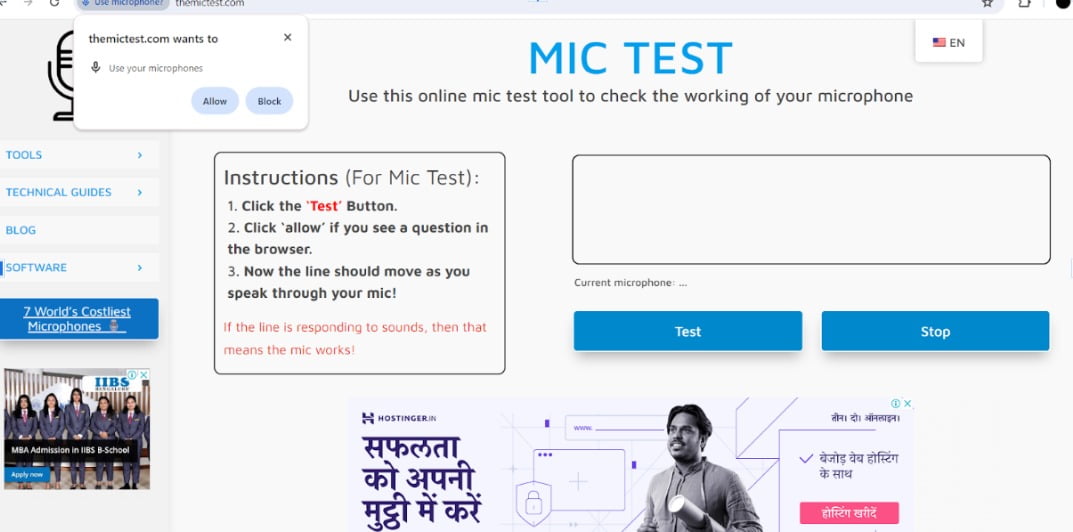
2단계: 마이크 테스트
- Click the button labeled “Test” or “Start test”.

3단계: 마이크에 대고 말하세요
- 마이크에 대고 몇 마디 하거나 소리를 내 보세요.

4단계: 결과를 관찰하세요
- 마이크가 제대로 작동한다면, 말할 때 테스트 영역에 위아래로 움직이는 선이 보일 것입니다.
팁:
- 줄이 움직이지 않으면 목소리를 높이거나 페이지를 새로고침해 보세요.
- 기기 설정에서 마이크가 음소거되어 있지 않고 볼륨이 켜져 있는지 확인하세요.
- 여전히 문제가 해결되지 않으면 웹사이트의 문제 해결 가이드를 참조하여 추가적인 도움을 받으세요.
- 여전히 문제가 해결되지 않으면 themictest 웹사이트에 있는 문제 해결 가이드를 참조하여 추가적인 도움을 받으세요.
 KO
KO  EN
EN  DE
DE  ES
ES  FR
FR  JA
JA  VI
VI  HI
HI  RU
RU  ZH
ZH  PL
PL  ID
ID